Wondering what a TYPE reset is for? This article explains why and when a TYPE reset is needed and provides clear, step-by-step instructions to guide you through the process.
What is the TYPE setting on the SpaNET® Control System?
A TYPE reset helps your system recognise your spa’s model and settings. Learn what it does, when to use it, and how to complete the reset with this simple step-by-step guide.
What Is the SpaNET® “Type Reset” Used For?
The “Type Reset” (or resetting the TYPE setting) on a SpaNET® controller is a way to restore proper configuration when the controller’s model type setting has become incorrect.
Because SpaNET® controllers have multiple models with different capabilities (number of pumps, functions, etc.), having the wrong TYPE set can cause unexpected behaviour.
The reset ensures the controller “knows” which model it’s working as, so the rest of the settings (pumps, heating, buttons, etc.) line up correctly.
Below are all the main situations and symptoms that a TYPE reset is used for, beyond just fixing heating issues, and why and when you should perform one.
When / Why You Might Need a TYPE Reset
Here are the common triggers and signs that the TYPE setting may have gone awry, and when a TYPE reset is recommended:
After a power outage, brownout, or power surge
- Symptoms / what goes wrong: The controller can lose or mis-set its TYPE value; settings that depend on model type start acting incorrectly.
- Why TYPE Reset helps: Resetting TYPE restores the correct model identity so that functions are matched correctly.
When replacing the controller circuit board
- Symptoms / what goes wrong: The new board may have a default or wrong TYPE setting. Buttons or pumps may not map correctly.
- Why TYPE Reset helps: Reset ensures the hardware is aligned with the correct controller model.
Buttons are not working as they should
- (e.g. pressing a button does something unexpected/wrong pump or blower activates)
- Symptoms / what goes wrong: Buttons may be swapped, functions mis-assigned, or button presses may yield no response.
- Why TYPE Reset helps: Because the TYPE setting defines how pumps, blowers, etc. are wired/mapped. If wrong, button-to-function mapping is off.
Pumps running when they shouldn’t / spa overheating
- Symptoms / what goes wrong: The spa may heat even when not called for; pumps running inappropriately; over-temperature or safety issues.
- Why TYPE Reset helps: Correct TYPE ensures the control logic (when pumps turn on/off, heater cycles, etc.) works as designed for that model.
Model-dependent features failing or acting weird
- Symptoms / what goes wrong: Touchpad functions, heating control, pump linkage (which button controls which pump), “jet” settings might be mismatched.
- Why TYPE Reset helps: With the proper TYPE, those features are explicitly enabled or configured correctly.
Note: Please follow the instructions that match your specific SpaNET® controller and touchpad model. If you're unsure which controller or touchpad model you have, refer to your spa's manual.


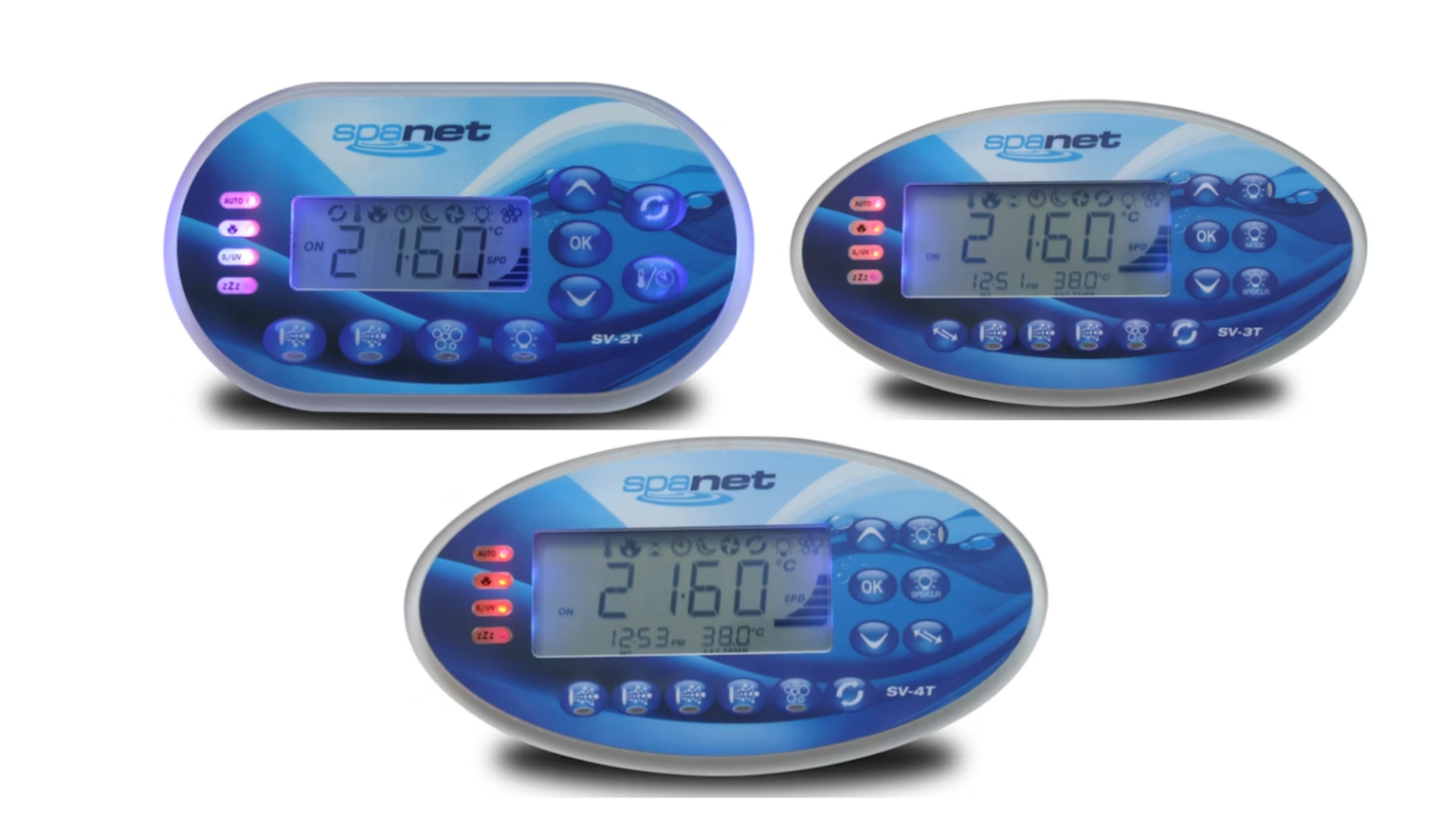
How to change the TYPE Setting with an SV touchpad (SV2T / SV3T / SV4T)
Step 1: Enter the factory menu
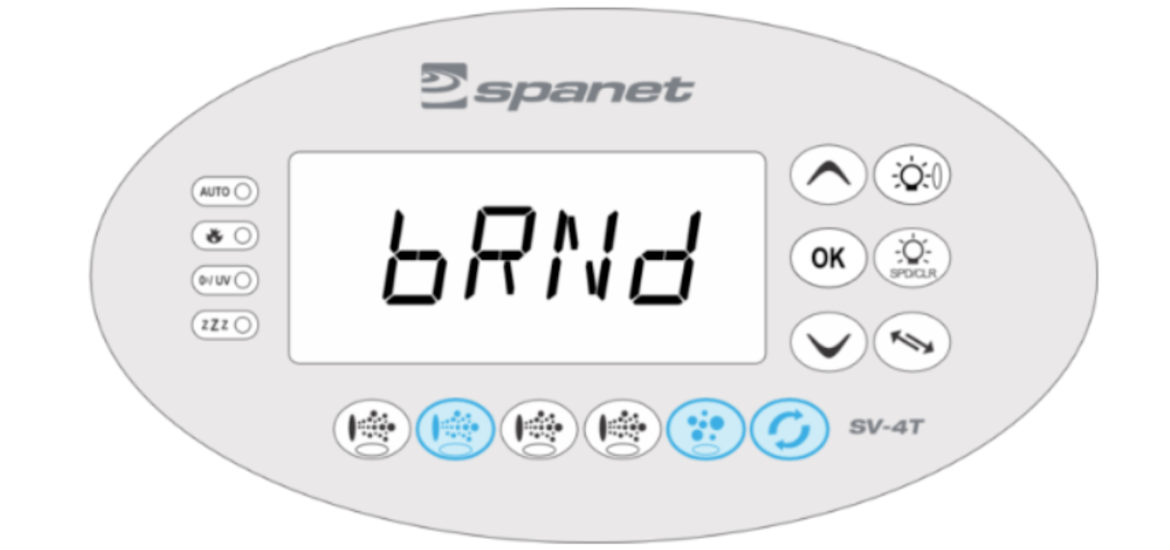
- Press and hold the Pump B, Air Blower, and Water Clean buttons until V.PMP or bRNd appears on the screen.
Step 2: Navigate to TYPE
- Press the up-arrow to scroll through the menu list until TYPE is displayed.
- Press Okay to view the current TYPE value.
Step 3: Select the correct TYPE
- Use the up-arrow or down-arrow to adjust the setting until your controller model TYPE is displayed (e.g. SV Mini 2 = SM2, SV3-VH = SV3, etc.).
- Press Okay to confirm. The screen will once again display TYPE.
Step 4: Reboot the controller
- Press the up-arrow to continue scrolling until bOOT appears.
- Press Okay to reboot.
- Note: The screen may go blank after the priming cycle when rebooting. If this happens, turn the power off at the source, wait 10 seconds, and then turn it back on.
Check Additional Settings
- Once the TYPE value has been updated, SpaNET® also recommends checking the Element count (ELMT) and Load shed (L.SHd) settings.
Step 5: Adjust Element Count (ELMT)
- Enter the factory menu again by pressing and holding Pump B, Air Blower, and Water Clean until V.PMP or bRNd is displayed.
- Press the up-arrow until ELMT is shown.
- Press Okay to view the current value.
- Use the up-arrow or down-arrow to adjust the value to 2 (since version 2 SV controllers have two elements inside the heater tube).
- Press Okay to confirm. The screen will again display ELMT.
Step 6: Adjust Load Shed (L.SHd)
- Enter the advanced menu by pressing and holding the Air Blower and Water Clean buttons until C.LMT is displayed.
- Press the up-arrow once until L.SHd is displayed.
- Press Okay to view the current Load Shed count.
- Use the up-arrow or down-arrow to set the value to 3 (screen should show 3 LS).
- Press Okay to confirm. The screen will again display L.SHd.
Step 7: Finish Up
- The process is now complete. After 10 seconds of inactivity, the screen will time out and display the water temperature.

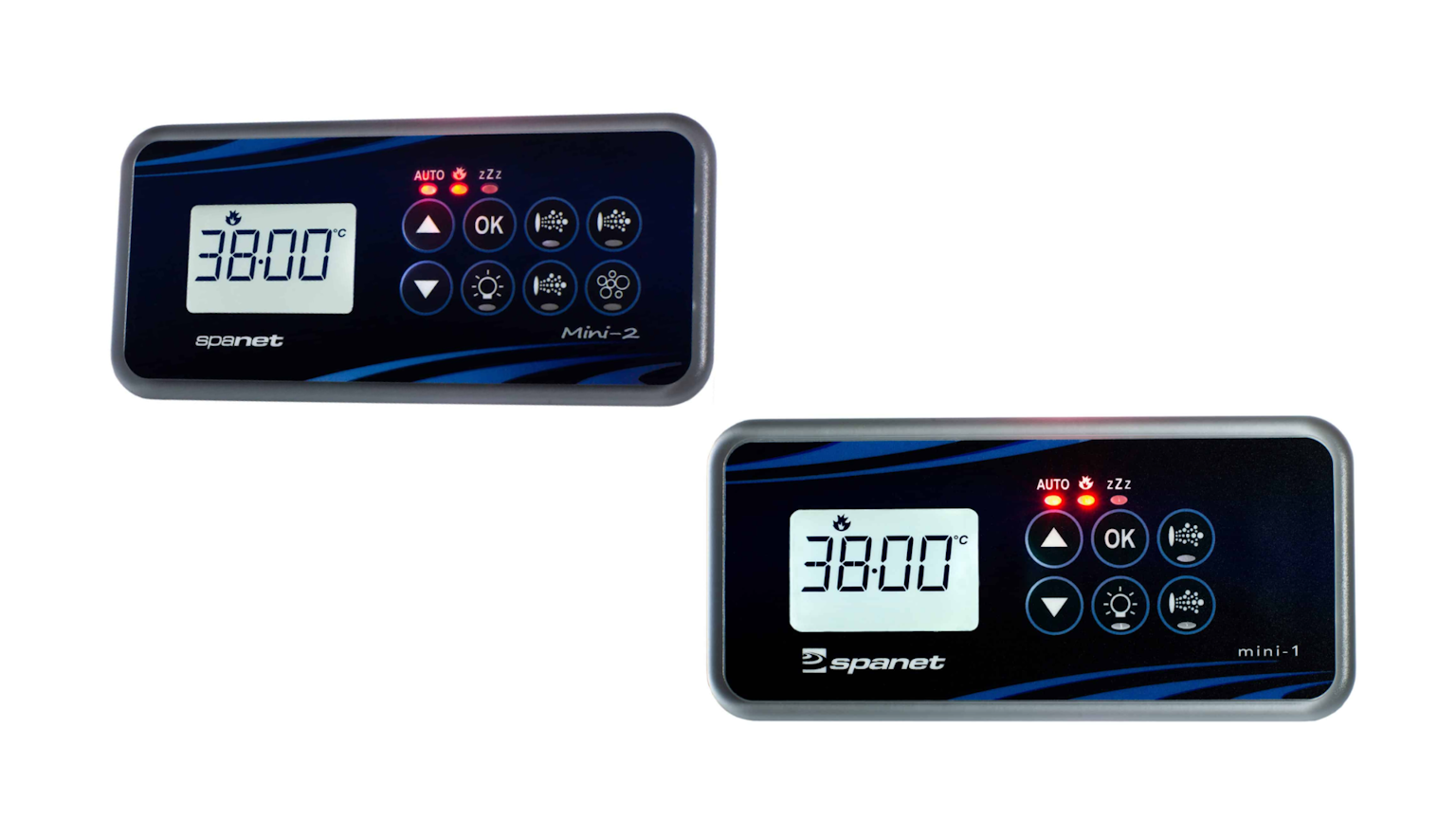
How to change the TYPE with an SV Mini touchpad (Mini 1 & Mini 2)
Step 1: Enter the factory menu
- Press and hold the Pump B, Pump C, and Blower buttons until V.PMP or bRNd is displayed.
Note: On Mini 1 touchpads, some buttons may be hidden (refer to the image above if available).
Step 2: Navigate to TYPE
- Press the up-arrow to scroll through the menu list until TYPE appears on the screen.
- Press Okay to view the current TYPE value.
Step 3: Select the correct TYPE
- Use the up-arrow or down-arrow to adjust the setting until your controller model TYPE is displayed (e.g. SV Mini 2 = SM2, SV3-VH = SV3, etc.).
- Press Okay to confirm. The screen will once again display TYPE.
Step 4: Reboot the controller
- Press the up-arrow again until bOOT appears on the screen.
- Press Okay to reboot the controller.
- Note: The screen may go blank after the priming cycle when rebooting. If this happens, switch the power off at the source, wait 10 seconds, then turn it back on.

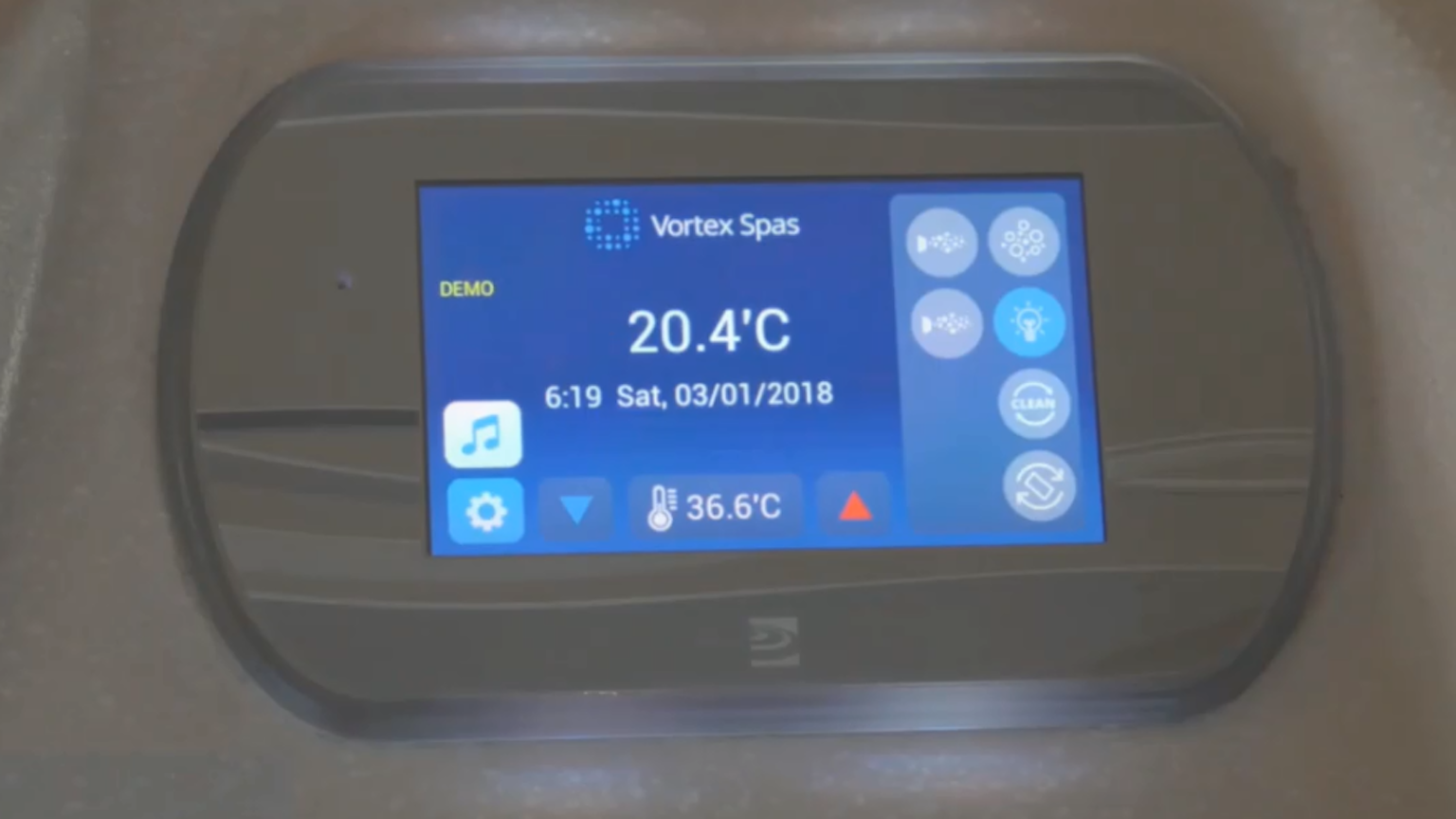
How to change the TYPE with SmartTouch® touchpad
Step 1: Enter the Settings menu
- Press the Settings button in the bottom left-hand corner.
- Press the down arrow button to scroll to the very bottom and select the Advanced Menu button.
- You’ll be prompted to enter a PIN code. Enter 14863, then press ENTER.
Step 2: Enter the Factory menu
- Once in the Advanced menu, press the down button to scroll to the very bottom and select FACT (Factory Option Menu).
- You’ll be prompted to enter another PIN code. Enter 74269, then press ENTER.
Step 3: Adjust the TYPE setting
- Select TYPE Model Type to view the current TYPE value.
- Use the minus (-) or plus (+) button to navigate through the options until your controller model TYPE is displayed (e.g. SV Mini 2 = SM2, SV3-VH = SV3, etc.).
- Press SAVE and wait for the screen to display SAVED.
Step 4: Reboot the controller
- Press the Back button once to return to the Factory Menu.
- Press the down arrow to scroll to the bottom of the menu.
- Select BOOT Reboot Controller.
- Press the BOOT button and wait for the screen to display SAVED.
Check Additional Settings (SV2, SV3, SV4 Controllers)
- If you have an SV2, SV3, or SV4 controller, SpaNET® recommends also checking the Element Count (ELMT) and Load Shed (LSHD) settings.
In Summary
We hope this guide has helped you understand when a TYPE reset is needed and how to carry it out on your SpaNET® controller.
Need further assistance? Contact our support team or schedule a technician to ensure your spa is working safely and efficiently.


Related Articles

How to fix error messages associated with a SpaNet® SV Series Heat Pump
Troubleshoot error messages on your SpaNet® SV Series Heat Pump with this helpful guide. Identify common errors, find step-by-step solutions, and restore your spa’s heating and cooling system to peak performance.


How to Cool Down Your Spa in Summer: Expert Tips for Lowering Spa Temperature
Finding your spa too warm during summer? In this guide, we’ll show you practical tips to help keep your spa water cooler, from adjusting settings to using a heat pump. Keep reading for expert advice.